
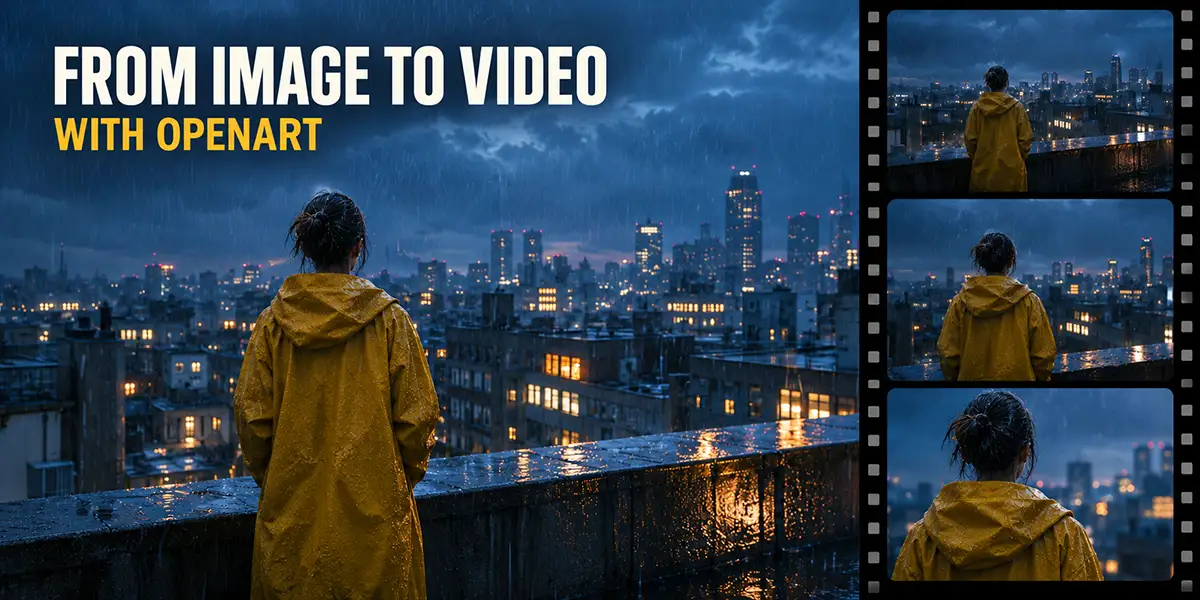
A person in a yellow raincoat stands on a rooftop overlooking a city at dusk. The frame already has a story in it. Pull the camera forward slowly and let the wind catch the coat, and it feels like the opening of a film. Now add traffic, lightning, a turning head and a sweeping drone move. Suddenly you’re spending your next five generations trying to work out why the coat has a life of its own.
That’s the appeal and the frustration of AI imagery and video. You can turn a visual idea into something you can see and edit in remarkably few steps. The creative decisions that make it worth watching still belong to you. My starting point is simple. Get the still image right, decide what should move, then make a clip with one clear purpose.
Affiliate disclosure. I use OpenArt in majority of my creative work. If you make a qualifying purchase through the OpenArt links in this article, I may earn a commission, but it costs you nothing to use my link. It allows us to continue makeing great educational content.
OpenArt puts image generation and all the major platforms, image-to-video tools under the same workspace. Its Frame to Video tool takes a still image and turns it into a moving shot, you can add a start frame only or both a start and end frame. That makes it a practical place to try the workflow below, especially if you’re making short-form content, developing a visual concept or filling a gap in an edit.
What AI imagery and video can do for creators
The most immediate use is to make a shot you can put in front of someone. A filmmaker can test the look of an opening sequence. A small brand can see whether a product reveal should feel playful or refined. A creator explaining the digital economy can give an abstract idea a visual setting, then use that setting across an article and a Short.
I’ve used OpenArt on visuals for a number of projects bothe professional and personal.
AI video earns its place when the motion helps tell that story. Sometimes a still image under narration does the job beautifully. Animate the shots where movement directs the eye, shows a change or gives the edit a beat to land on.
How to turn an AI image into a video with OpenArt
1. Give the shot one job
Before writing a prompt, finish this sentence for yourself. “This shot shows the viewer…” For the rainy rooftop, the shot establishes that the character is alone above a busy city. That tells you how much skyline to show, where to place the person and how understated the camera move should be. It also gives you a test for the result. If the shot makes the city feel empty, you need a different image, even if the lighting looks great.
2. Build the still image for the final format
Choose the aspect ratio before generating the frame. For a vertical Short, keep the important action somewhere you can frame comfortably in 9:16. For a widescreen piece, use the extra room to establish location or distance. Leave space where the subject will move and where a caption might sit. Watch for details that already look fragile in the still, such as lettering on signs or fingers wrapped around an object. Motion can make those issues more obvious.
Still-image prompt. Vertical 9:16 cinematic frame of a person in a yellow raincoat standing with their back to camera on a rooftop at blue hour. The person fills the lower middle of the frame and a rain-soaked city stretches ahead. Natural reflections, muted blue palette, realistic photography. Leave the top quarter of the frame visually quiet for captions.
3. Animate the strongest frame
Open the image in OpenArt’s Frame to Video tool. Use the motion prompt to describe the change you want. Start with one camera move and one simple action in the scene. If the character’s face needs to stay out of view, say so. Use the shortest clip option that gives the movement time to read. A short test gets you to the edit sooner and makes it easier to see which part of the prompt needs work.
Motion prompt. Slow, steady camera push toward the person’s back. The person holds their position facing the skyline. A light breeze moves the lower edge of the yellow raincoat. Keep the skyline and framing stable throughout the shot.
4. Judge the shot in a rough edit
Watch the entire clip, including the last second. Look for changes in faces, hands, products, signs or background geometry. Then drop the clip under your narration or soundtrack. A take with an awkward ending may still give you an excellent two-second cutaway. If the shot needs another pass, change one direction at a time. Try locking the camera before you rewrite the whole prompt. That way you’ll know whether the camera move was causing the trouble.
Where OpenArt fits into a real production workflow
The part I find most valuable is the short distance between a visual idea and something I can put on a timeline. I can decide that the mood is too gloomy, the composition is too crowded or the visual metaphor is too obvious while the project is still easy to change. That’s especially helpful when I’m developing a Short and need a visual strong enough to carry one line of narration.
I’d be more selective when a shot depends on an exact likeness, a real location or a product matching its packaging. For a product video, I’d start with an approved photograph, keep the motion modest and compare the label against the source. If an AI shot changes details customers rely on, I’d use the original product image and add movement in the edit. The right decision depends on what the audience needs to see clearly.
If you’re exploring a bigger sequence, set the look with a few still frames first. Then animate the most important shot before committing to the rest. If that shot works next to your actual voice-over or music, you have a much better basis for deciding how much time to spend on the sequence.
Try OpenArt on a shot you already need
Pick one clip you’re working on this week. It could be a three-second opener, a transition between two ideas or a cutaway that would otherwise take half a day to film. Make two still frames, choose one to animate and see what it adds to the edit. That’s enough to know whether OpenArt has a place in your next project.
Try OpenArt for your next image-to-video project

About the Author
Curtis Randall is an award-winning creative executive and future systems thinker helping people and businesses understand and adapt to the future of work, creativity, technology, digital ownership, and wealth creation. Through CurtisRandall.com and Sights.com, Curtis explores the systems shaping how people work, create, own, and build value in a rapidly changing world.
Connect with Curtis: LinkedIn · YouTube · Instagram · X · TikTok · Facebook · Threads